Difference between revisions of "Buildings"
(Created page with "{{#dpl:category=buildings|include={Building}.building.population}}") |
(Beginning a Settlement info moved to new tutorial page) |
||
| (32 intermediate revisions by 7 users not shown) | |||
| Line 1: | Line 1: | ||
{{ | '''Buildings''' in ''[[Foundation]]'' are a necessity to growing the village. When starting a new game, the initial buildings (specifically the [[village center|Village Center]] and [[builder's workshop|Builder's Workshop]]) are forced as they are the only buildings available to construct. After these buildings are completed, the building tree will open up, with [[quests]] that guide further construction towards specific buildings. | ||
Construction of any building begins by opening the building menu: | |||
<gallery widths="150px"> | |||
Building UI Icon.png|Inactive Icon | |||
Building UI Icon Hover.png|Hover Icon | |||
Building UI Icon Selected.png|Selected Icon | |||
</gallery> | |||
From the menu, there are two methods of finding the desired building: the Search box in the top right, or the building type filters at the bottom of the menu. | |||
{{Icon List|All Filter Icon.png, All | |||
Logistics Filter Icon.png, Logistics | |||
Production Filter Icon.png, Resource Production | |||
Food Filter Icon.png, Food Production | |||
Goods Icon.png, Goods Production | |||
Service Filter Icon.png, Service | |||
Administration Filter Icon.png, Administration | |||
Decoration Filter Icon.png, Decoration | |||
Masterpiece Filter Icon.png, Masterpiece | |||
Transportation Filter Icon.png, Transportation | |||
Wall Filter Icon.png, Wall | |||
Mod Filter Icon.png, Mods}} | |||
==Building Placement== | |||
[[File:Lumber Camp Blueprint.png|200px|thumb|A lumber camp that has not yet been placed]] | |||
Once the building to be placed has been located and selected in the build menu, a blueprint will show in the world under the cursor. The blueprint has 4 key parts: | |||
*Building visual - shows the position and angle of the building when placed. | |||
*Blue line - the outer boundary. | |||
* Small white arrows around the boundary - entry points; blocking these will prevent villagers from entering the building. | |||
*Central four-way arrows - click and drag to move the building around the map. | |||
*Circle around central arrows - click and drag to rotate the building. | |||
At the early stages of city building, the rotate and place commands will be all that is required in most situations, alongside right click (or ESC) to cancel/delete the selected part. There are several further controls to be aware of: | |||
*Vertical arrows - allow for resizing of building parts on some modular buildings. | |||
*Left and right arrows (either side of vertical) - allows the player to scroll between different roofing options on some modular buildings. | |||
*Shift + left-click - Allows the building/part to be placed, but retain the blueprint to place again. This allows for the rapid placement of multiple buildings/parts of the same time without having to individually reselect them. | |||
=== Modular Buildings=== | |||
Modular buildings can be built and adjusted to adapt to needs (or aesthetics) as the village expands. The first two modular buildings are the Builder's Workshop (which can be extended with a [[Sculptor's Workshop]] and a [[Stained Glass Workshop]]) and the Market. All modular buildings will have one or more mandatory requirements that will prevent the building from functioning properly if not met. For instance, the [[Rustic Church]] must have a door, core building and bell tower in order to work properly. Players receive a notification if they attempt to begin construction on a building where the mandatory requirements have not been met. | |||
<gallery> | |||
Modular Building Overview.png|Overview of a Market with multiple pieces installed. | |||
Resize Example.png|A church core selected showing the resize indicator in the middle of the part. | |||
</gallery> | |||
===Decorations=== | |||
{{Main|Decorations}} | |||
Decorations are standalone objects that improve the desirability of the area in which they are placed. If attached to buildings, they provide Splendour matching the type of the building. | |||
==Resource Bundles== | |||
The construction process uses steps called resource bundles: a package of resources that must be completed in order to construct a specific stage of a building. Many early buildings will have a single bundle of all materials required for construction. | |||
More advanced buildings and modular buildings will have multiple resource bundles to the construction. Although resources may be brought for any bundle in any order, construction work can only be completed in bundle order. Therefore if the resources for bundle 2 have been collected, but work on bundle 1 has not been completed, construction on bundle 2 cannot begin. Similarly, if resources for bundles 1 and 3 have been collected, but those of bundle 2 have not, then builders can only complete construction on bundle 1. | |||
Where multiple bundles use the same resource, resources brought to the site will be allocated in bundle order. | |||
==Maintenance Costs== | |||
[[File:Maintenance Cost.png|frameless|right|100px]] | |||
All buildings have a monthly maintenance cost. If maintenance costs exceed income, the treasury may start to run out of [[Gold Coins|gold]], which in turn will prevent the placement of new buildings, the import of resources and the purchase of new [[territories]]. | |||
INFO ON ASSIGNING WORKERS, BUILDING PARTS, SUB-BUILDINGS, CHANGING FUNCTIONS etc. | |||
== Buildings Summary== | |||
{{Building oTable}} | |||
[[Category:Game Mechanics]] | |||
Latest revision as of 07:14, 22 January 2026
Buildings in Foundation are a necessity to growing the village. When starting a new game, the initial buildings (specifically the Village Center and Builder's Workshop) are forced as they are the only buildings available to construct. After these buildings are completed, the building tree will open up, with quests that guide further construction towards specific buildings.
Construction of any building begins by opening the building menu:

Inactive Icon
Hover Icon

Selected Icon


From the menu, there are two methods of finding the desired building: the Search box in the top right, or the building type filters at the bottom of the menu.
 - All
- All - Logistics
 - Resource Production
 - Food Production
 - Goods Production
 - Service
 - Administration
 - Decoration
 - Masterpiece
 - Transportation
 - Wall
 - Mods
Building Placement

Once the building to be placed has been located and selected in the build menu, a blueprint will show in the world under the cursor. The blueprint has 4 key parts:
- Building visual - shows the position and angle of the building when placed.
- Blue line - the outer boundary.
- Small white arrows around the boundary - entry points; blocking these will prevent villagers from entering the building.
- Central four-way arrows - click and drag to move the building around the map.
- Circle around central arrows - click and drag to rotate the building.
At the early stages of city building, the rotate and place commands will be all that is required in most situations, alongside right click (or ESC) to cancel/delete the selected part. There are several further controls to be aware of:
- Vertical arrows - allow for resizing of building parts on some modular buildings.
- Left and right arrows (either side of vertical) - allows the player to scroll between different roofing options on some modular buildings.
- Shift + left-click - Allows the building/part to be placed, but retain the blueprint to place again. This allows for the rapid placement of multiple buildings/parts of the same time without having to individually reselect them.
Modular Buildings
Modular buildings can be built and adjusted to adapt to needs (or aesthetics) as the village expands. The first two modular buildings are the Builder's Workshop (which can be extended with a Sculptor's Workshop and a Stained Glass Workshop) and the Market. All modular buildings will have one or more mandatory requirements that will prevent the building from functioning properly if not met. For instance, the Rustic Church must have a door, core building and bell tower in order to work properly. Players receive a notification if they attempt to begin construction on a building where the mandatory requirements have not been met.
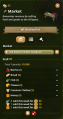
Overview of a Market with multiple pieces installed.
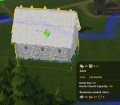
A church core selected showing the resize indicator in the middle of the part.


Decorations
Main Article: Decorations
Decorations are standalone objects that improve the desirability of the area in which they are placed. If attached to buildings, they provide Splendour matching the type of the building.
Resource Bundles
The construction process uses steps called resource bundles: a package of resources that must be completed in order to construct a specific stage of a building. Many early buildings will have a single bundle of all materials required for construction.
More advanced buildings and modular buildings will have multiple resource bundles to the construction. Although resources may be brought for any bundle in any order, construction work can only be completed in bundle order. Therefore if the resources for bundle 2 have been collected, but work on bundle 1 has not been completed, construction on bundle 2 cannot begin. Similarly, if resources for bundles 1 and 3 have been collected, but those of bundle 2 have not, then builders can only complete construction on bundle 1.
Where multiple bundles use the same resource, resources brought to the site will be allocated in bundle order.
Maintenance Costs

All buildings have a monthly maintenance cost. If maintenance costs exceed income, the treasury may start to run out of gold, which in turn will prevent the placement of new buildings, the import of resources and the purchase of new territories.
INFO ON ASSIGNING WORKERS, BUILDING PARTS, SUB-BUILDINGS, CHANGING FUNCTIONS etc.


